In 2026, video content is king, and creating it is no longer as complex as it used to be. In a few clicks, Luma AI's video generator can breathe life into a still image. This how-to guide walks you through the exact steps, from sourcing the right image to animating it and editing your clips into a finished video.
Getting Started with Luma AI's Dream Machine
Luma AI is powered by the innovative Dream Machine. This lets creators of all levels generate videos without any video editing knowledge. The free plan gives you a set number of generations each month, and you can upgrade to a paid plan when you need more (check Luma's site for the current limits, as they change from time to time).

While you can create a video with its text-to-video capabilities, you will get far more control over the outcome by starting from a high-quality image. Not a photographer? No problem. There are two primary ways to source an image:
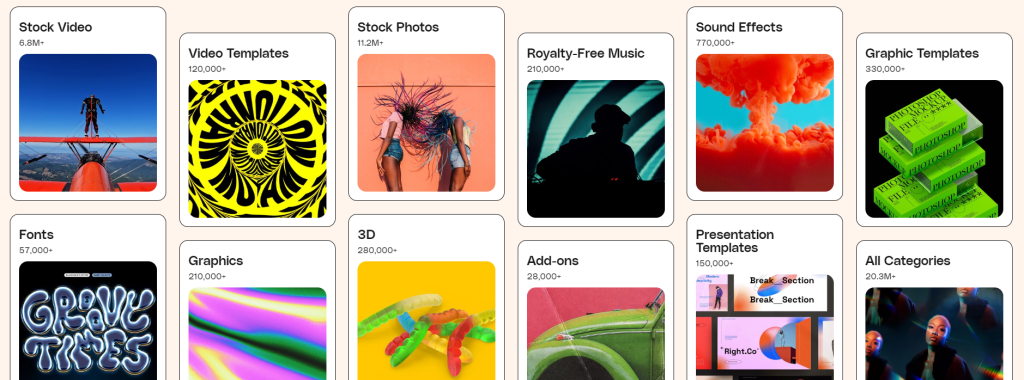
- Content Libraries: Stock photo websites like Envato, Freepik, and Shutterstock offer a vast collection of high-quality images.
- AI Image Generators: For a more customized approach, use AI image generators like Leonardo.ai or Midjourney to create unique images from detailed text descriptions.
Still deciding which generator to build your workflow around? Our breakdown of Luma vs Runway compares the two head to head so you can pick the right one for your project.
Animating Your Vision: A Step-by-Step Guide
Once you have your chosen image, it is time to bring it to life with Luma AI. The process is remarkably simple:
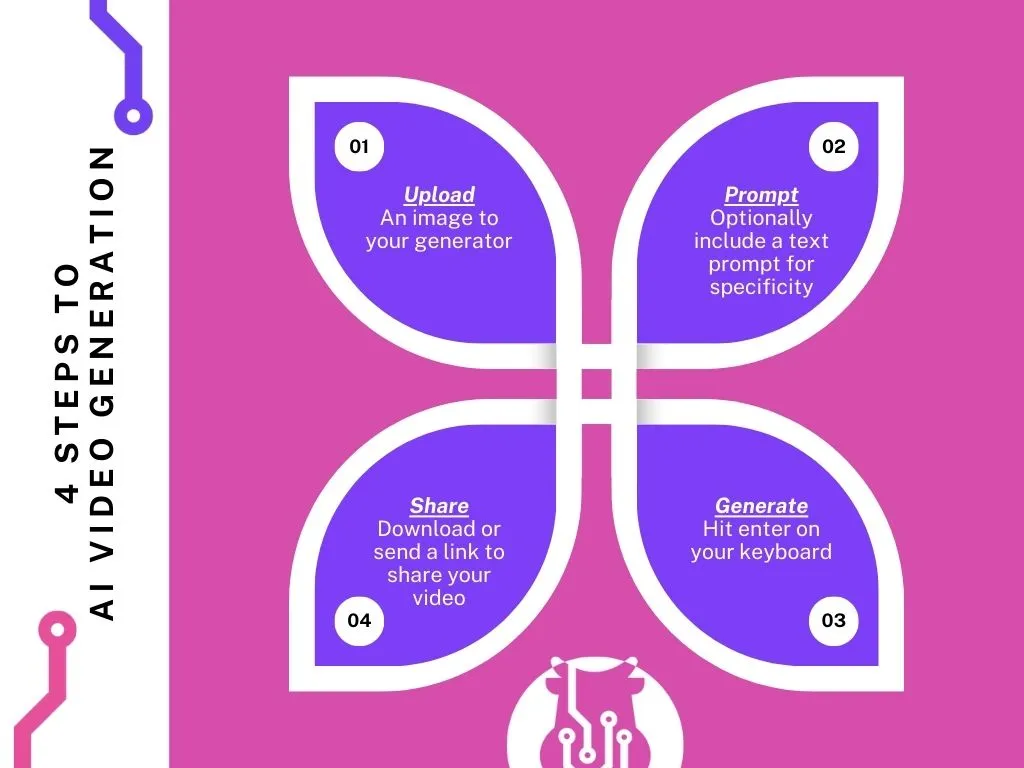
Step 1: Upload Your Image
Drag and drop your high-resolution image directly into the Luma AI interface. This will serve as the foundation for your video.
Step 2: Write Your Prompt
This is where the magic happens. Provide an optional text prompt to guide the animation. Describe how you want the image to come to life, including camera movements like panning, tilting, or zooming to add depth.
Step 3: Generate & Share
Once you have crafted the perfect prompt, hit "Enter" and let the Dream Machine work. The generation process usually takes a few minutes. When it is ready, you can download your video or share it directly.
From Clips to a Finished Video: The Editing Step
Generating AI video clips with Luma AI is only the first step in the creative process. To turn individual AI-generated scenes into a complete video, creators need an editing workflow that brings everything together. An AI video editor like Invideo editor helps refine AI-generated footage using AI agents to arrange clips, improve pacing, add captions, adjust audio, and create platform-ready versions for YouTube, Instagram, and other channels.
Fun Fact: 89% of consumers want to see more videos from brands
Are you meeting their expectations?
Tips on How to Use Luma AI Effectively
- Resolution is Key: Always start with a high-resolution image to ensure the best possible video quality. The sharper your source image, the more detailed your final video will be.
- Experiment with Prompts: Do not be afraid to try different text prompts and camera movements. Each variation produces a unique result, allowing you to explore creative possibilities. Keep an eye on your monthly generation allowance on the free plan.
- The Loop Advantage: Use Luma AI's Loop feature to create short, seamless videos perfect for social media. This enhances visual appeal and significantly reduces production time.
- Addressing Glitches: As with any new tech, there might be minor irregularities. Luma AI is constantly evolving, and these are becoming less frequent. Do not let a minor imperfection discourage you from exploring its vast creative potential.
Frequently Asked Questions
Is Luma AI free to use?
Luma AI offers a free plan with a limited number of generations each month, plus paid plans for creators who need higher volume and more features. The exact limits change over time, so check Luma's pricing page for the current numbers.
Can Luma AI turn a photo into a video?
Yes. Luma AI's Dream Machine is built for image-to-video, so you can upload a still image and animate it into a short clip, with an optional text prompt to guide the motion.
What kind of image works best with Luma AI?
A high-resolution, sharp image gives the best results. The clearer your source image, the more detail and stability you get in the final video.
How long does Luma AI take to generate a video?
Most generations finish in a few minutes, though this can vary with demand and the complexity of your prompt.
Do I still need a video editor if I use Luma AI?
Usually, yes. Luma AI creates individual clips, so to assemble those clips into a finished video with pacing, captions, and audio, you edit them together in an AI video editor such as Invideo editor before publishing to YouTube, Instagram, or other channels.
Luma AI: Shaping the Future of Video Creation
Luma AI offers a fantastic solution for low-effort, high-quality video creation. Whether you are a social media enthusiast, a seasoned video editor, or a tech-geek who likes trying new tools, Luma AI can help you unlock creative potential you might not have known you had.
If you are looking for more personalized help with your marketing efforts, book a complimentary 30-min session with us and let us see how we can help.